Total return
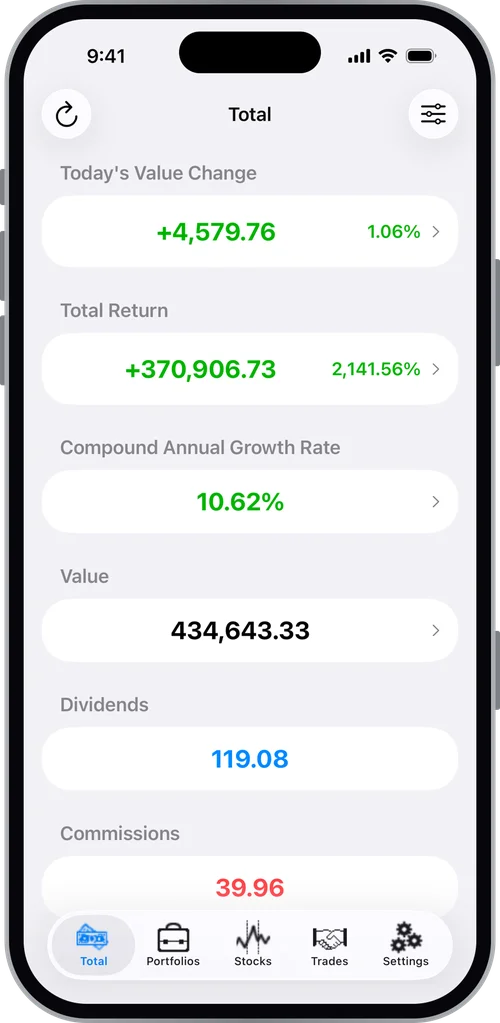
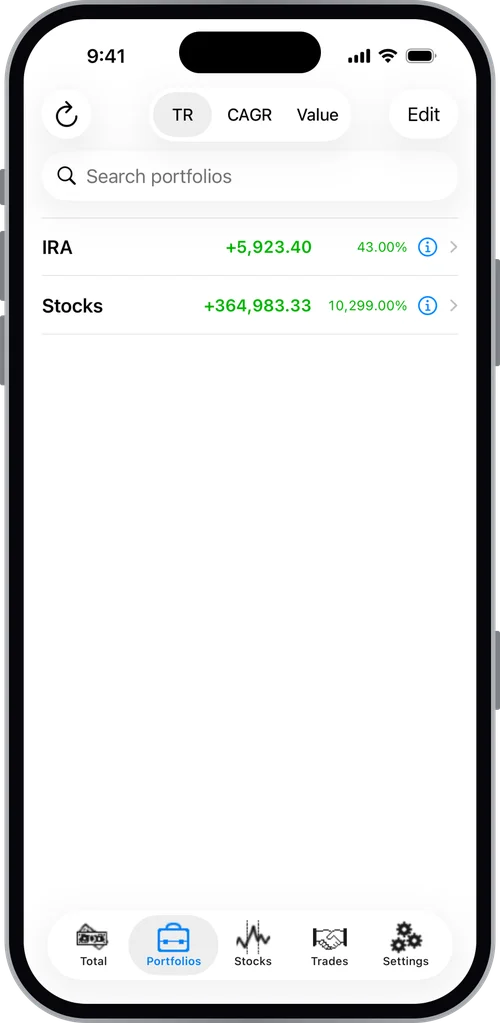
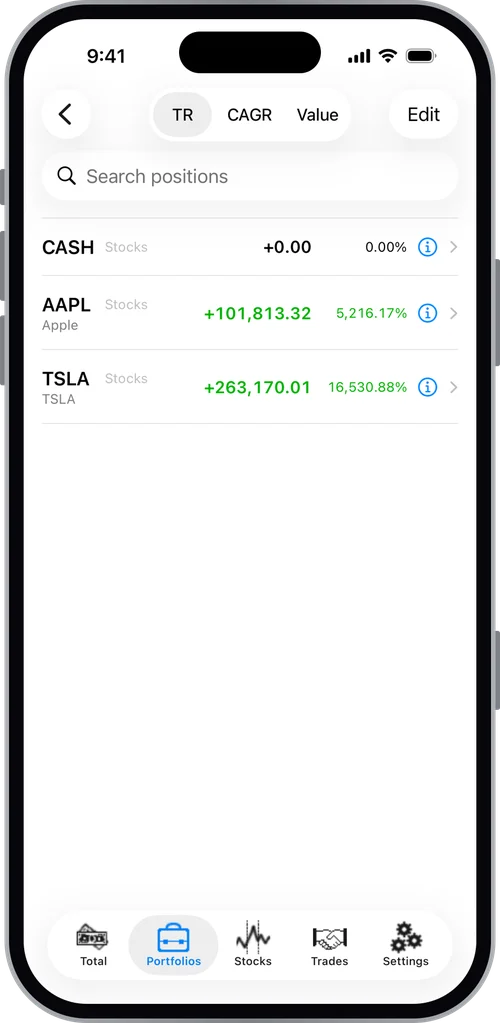
What you have actually made or lost on each holding, each portfolio and everything combined, not just today's price against what you paid.
See how much you have really gained or lost on your stocks, ETFs and mutual funds. Total Return counts sales, dividends, splits, cash moving in and out, and the timing of every trade, and turns it into a total return and an annualized return (CAGR).

For iPhone and iPad. Requires iOS 18 or later.
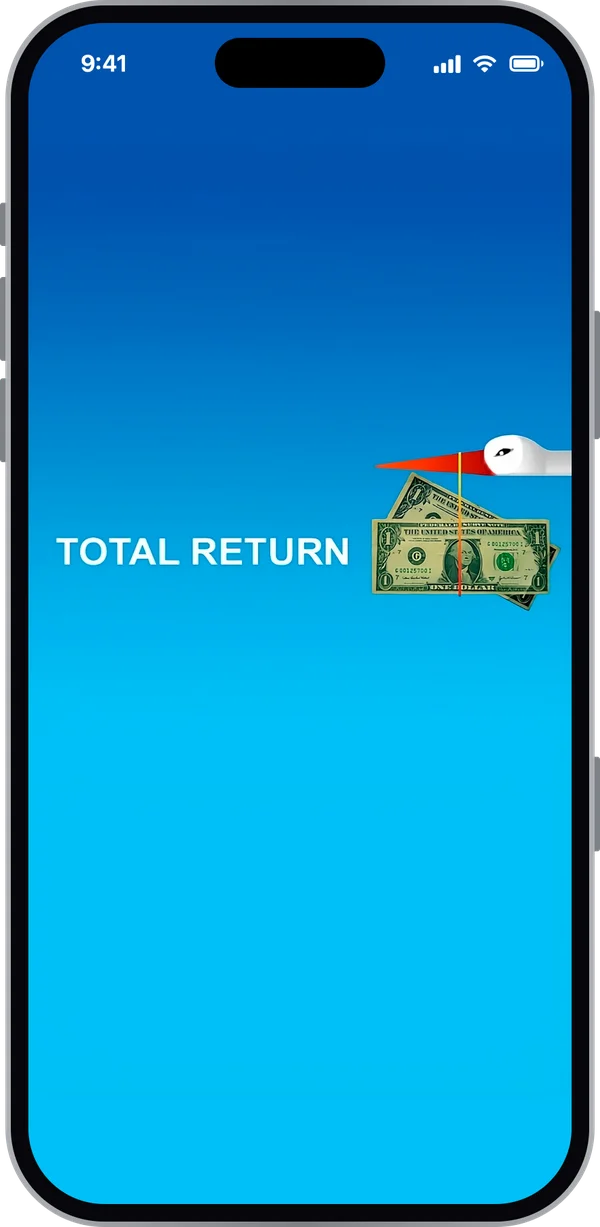
What you have actually made or lost on each holding, each portfolio and everything combined, not just today's price against what you paid.
Your compound annual growth rate, which accounts for the timing and size of every deposit and withdrawal, so you can compare against any benchmark.
Purchases, sales, dividends (including reinvested ones), stock splits, commissions, cash in, cash out and cash interest all go into the numbers.
Total Return gets the latest prices from Tiingo, a market data service, using an API key you get from Tiingo and enter under Settings > Market Data > Quote Data Source. It covers US stocks, ETFs and mutual funds (latest NAV). The app checks your key when you enter it. No key? Everything still works with prices you type in yourself. How to set up your key
Tiingo is an independent service and is not affiliated with Total Return.
Total Return is free for low-volume use.
Higher levels of use require a subscription, which also supports development.
Quote updates are never limited by the subscription. Your Tiingo key is separate: it's your own, on Tiingo's free tier or a paid Tiingo plan billed by Tiingo. Subscription details
Guides for Total Return on iPhone and iPad. Still stuck? Email support@nagotek.com.
Total Return shows how much your stock, ETF and mutual fund investments have really earned. It counts every purchase, sale, dividend, split and commission, and gives you your annualized return (CAGR) too.
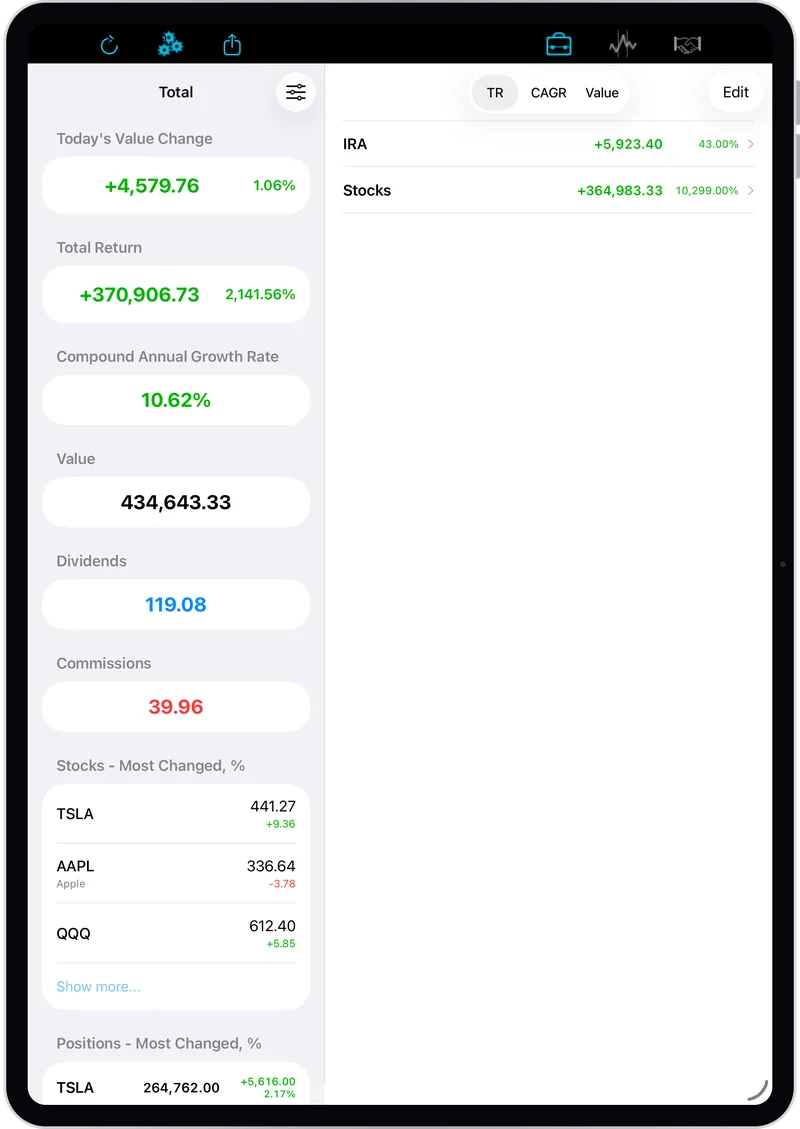
The app has five tabs: Total, Portfolios, Stocks, Trades and Settings. On iPad the same screens appear side by side, with buttons in the toolbar. The Total screen is your overview: what your investments are worth, how much that changed today, your overall total return, and your CAGR.
Your investments are organized into portfolios, such as "401(k)" or "Brokerage". A portfolio holds positions, and each position is one stock in that portfolio. The same stock can be in several portfolios.
To get started:
Tips pop up on each screen the first time you need them.
To have prices update automatically, add your own free Tiingo key (see Automatic stock quotes). Without one, you type prices in yourself.
Total Return is free for low-volume use. Higher levels of use require a subscription (see Subscription).
Before you enter trades, decide what you want to measure for each portfolio:
There's a middle path too. If you know your average price per share, enter that instead of today's price, and you get an approximate return since day one.
Example: you hold AAPL and KO in a 401(k), and AAPL and WFC in a brokerage account. Create two portfolios: "401(k)" with positions AAPL and KO, and "Stocks" with AAPL and WFC. Enter the full history for Stocks, and one summary purchase for each 401(k) position.
Total Return gets prices from Tiingo, using your own API key. A free Tiingo account is enough for most people.
| Tiingo Free | Tiingo Power (paid) | |
|---|---|---|
| Update quotes | When you refresh | When you refresh, and each time the app opens |
| Prices kept after you close the app | No | Yes |
| Company names filled in | No (your own label is used) | Yes |
| Fetched prices in Backups | No | Yes |
To refresh, pull down on a list, tap the refresh button, or shake your device. Tiingo's free plan allows 50 requests an hour and 1,000 a day. A single refresh covers up to 250 stocks per request, so normal use stays far below the limits. If you do reach a limit, the app says so and your prices update again later.
With Tiingo Free, prices aren't saved when you close the app, because Tiingo's free terms don't allow it. Prices and labels you type in yourself are always saved.
No key? Choose None (manual prices only) and enter prices by hand on each stock.
Data sourced by Tiingo.
Total Return is free for low-volume use. Higher levels of use require a monthly or annual subscription, which also supports the app's development. Quote updates are never limited, with or without a subscription.
If you reach the limit of free use without a subscription, you can still view, edit and delete your existing trades.
See the Terms of Use and Privacy Policy.
Total Return makes automatic backups on your device. You choose how often in Settings > Data Management > Auto Backup (Daily, Weekly, Monthly, Annually or Never). Backups are always saved on the device, so if the device is lost or you delete the app, they're gone too, unless you keep copies in iCloud or email yourself a backup now and then.
Turn on Settings > Data Management > Copy Backups to iCloud. Each new backup, automatic or manual, is then also saved in your own iCloud Drive, in the Total Return folder. Your other iPhone or iPad signed in to the same Apple Account sees those copies in its Backups list, and each one shows which device made it. To copy an older backup, tap it in the Backups list and choose Upload to iCloud.
To remove a copy, tap the backup and choose Remove iCloud Copy. Turning the setting off stops new copies; copies already in iCloud stay until you remove them. See the Privacy Policy for how iCloud copies are handled.
To move to a new device, make a fresh backup on the old device, then restore it on the new one. With iCloud copies on, install Total Return on the new device, sign in to the same Apple Account, and restore the backup from its Backups list. Otherwise, email yourself the backup and open the attachment on the new device. If you use a subscription, tap Restore Purchases on the new device. Backups don't include your Tiingo key, so if quotes don't update on the new device, enter the key again under Settings > Market Data > Quote Data Source.
If you wipe your data (Settings > Data Management > Wipe Database), the app offers to make a backup first.
If a stock's value suddenly drops (or jumps) with no matching change in its price, it has probably split (or reverse-split). Here's how to record it, using Apple's 4-for-1 split on August 31, 2020 as the example:
Until you add a CASH position to a portfolio, the app treats your purchases as paid for with outside money, and sale and dividend proceeds as leaving the portfolio. Once you add CASH, it pays for every purchase and receives every sale and dividend, going back to the start. That's why its balance can look very negative right after you add it.
You can fix this in two ways:
Yes. Add it on the Stocks tab with any symbol you like, turn Auto Update off, give it a label, and enter its price yourself. You can also enter today's change; if you do, update it daily.
Email support@nagotek.com.