Total return
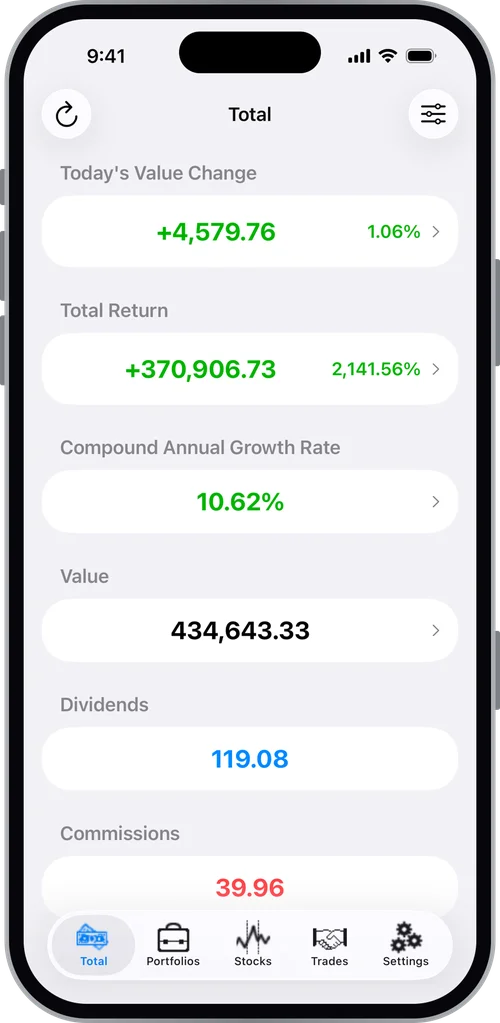
What you have actually made or lost on each holding, each portfolio and everything combined, not just today's price against what you paid.
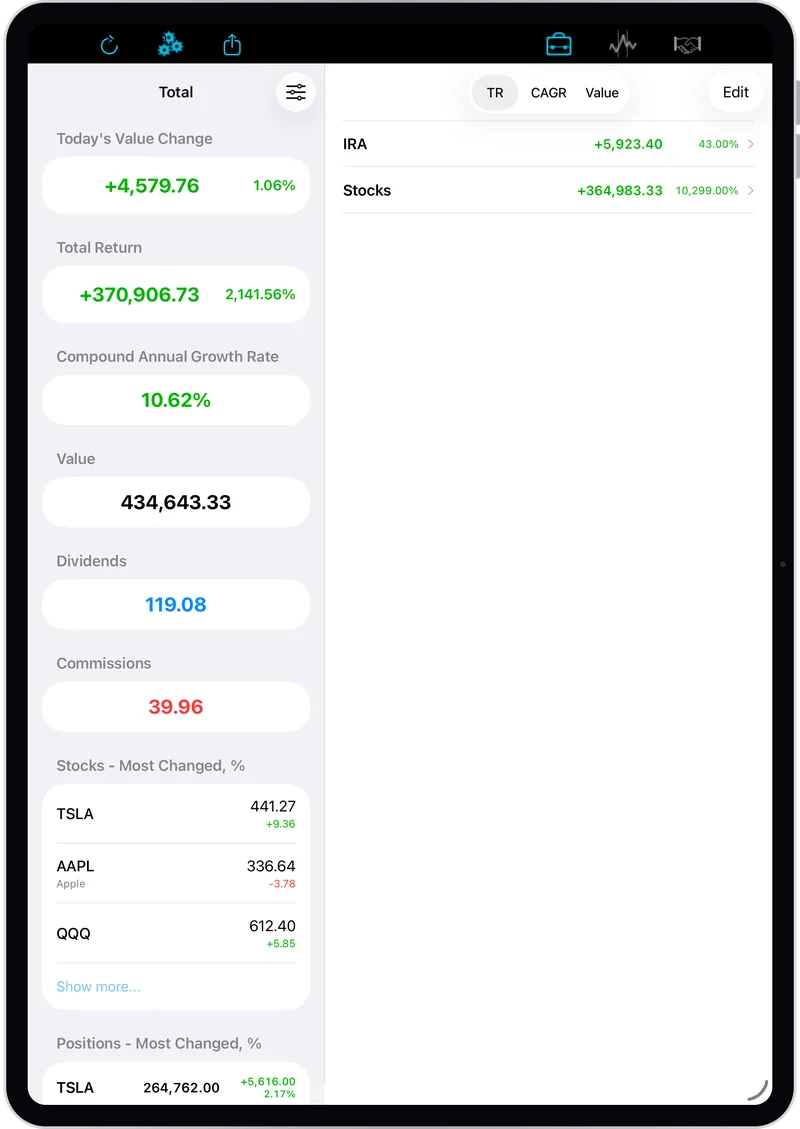
See how much you have really gained or lost on your stocks, ETFs and mutual funds. Total Return counts sales, dividends, splits, cash moving in and out, and the timing of every trade, and turns it into a total return and an annualized return (CAGR).

For iPhone and iPad. Requires iOS 18 or later.
What you have actually made or lost on each holding, each portfolio and everything combined, not just today's price against what you paid.
Your compound annual growth rate, which accounts for the timing and size of every deposit and withdrawal, so you can compare against any benchmark.
Purchases, sales, dividends (including reinvested ones), stock splits, commissions, cash in, cash out and cash interest all go into the numbers.
Total Return gets the latest prices from Tiingo, a market data service, using an API key you get from Tiingo and enter under Settings > Quote Data Source. It covers US stocks, ETFs and mutual funds (latest NAV). The app checks your key when you enter it. No key? Everything still works with prices you type in yourself.
Tiingo is an independent service and is not affiliated with Total Return.
Total Return is free for low-volume use.
Higher levels of use require a subscription, which also supports development.
Quote updates are never limited by the subscription. Your Tiingo key is separate: it's your own, on Tiingo's free tier or a paid Tiingo plan billed by Tiingo.
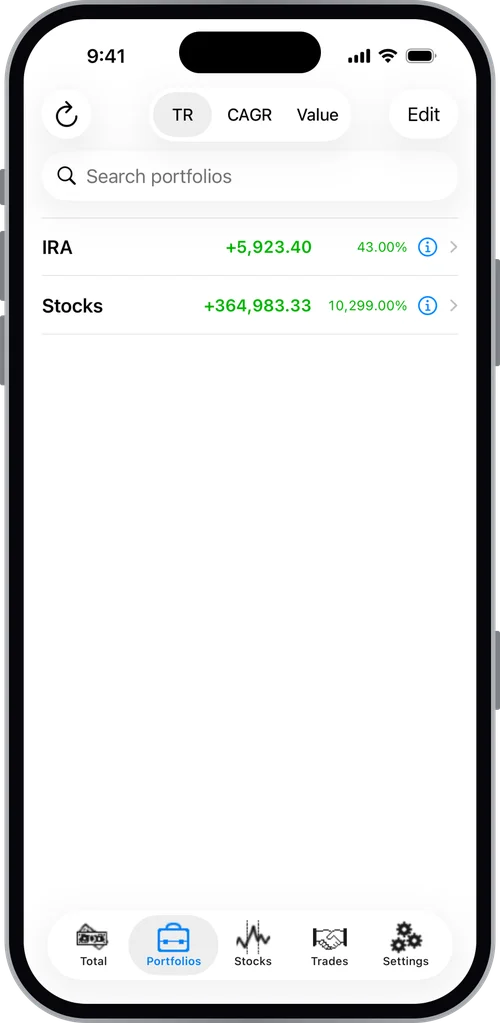
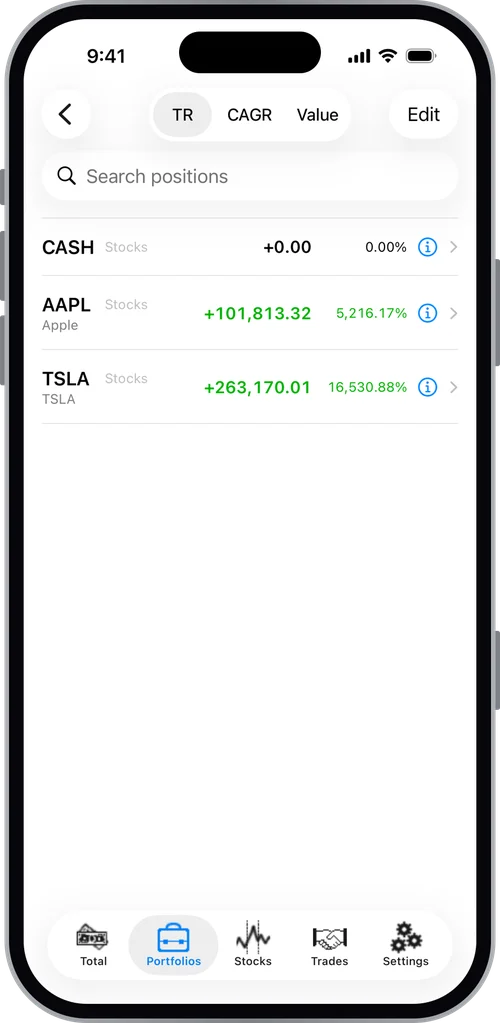
Add your stocks on the Stocks tab, create a portfolio on the Portfolios tab, add positions to it with the + button, then open a position and add its trades. The Total tab shows your overall value, today's change, total return and CAGR. Want to look around first? Tap "Load Demo Database" on the empty Total screen.
Say you have a 401(k) and a brokerage account. Create a portfolio for each, then add a position for every fund or stock you hold in it. From there you have two choices:
Yes, with your own free or paid key from Tiingo, entered under Settings > Quote Data Source. US stocks, ETFs and mutual funds are covered. With a free key, prices you fetch are shown while the app is open but aren't saved, as Tiingo's free terms require. With Tiingo Power they're saved and refresh when you open the app. To find a symbol, use Tiingo's search at tiingo.com or any finance site.
Yes. Add it on the Stocks tab with any symbol you like, turn Auto Update off, give it a label, and enter its price yourself. You can also enter today's change; if you do, update it daily.
The app makes automatic backups on the schedule you pick in Settings, and you can make one any time from Settings > Backups. To keep a copy elsewhere, email a backup to yourself. The backup isn't human-readable but isn't encrypted either, so treat it like any personal file.
Make a fresh backup in Settings > Backups and email it to yourself (or get the backup file to the new device any other way). Then open the attachment or link on the new device and confirm the restore.
Email support@nagotek.com.